You have the option of importing all your data into Monstock in order to bring together all the information from your catalog of products and equipment within the solution.
This tutorial explains how to import photos of your products and equipment in bulk. If you want to import another category of data, go to this tutorial.
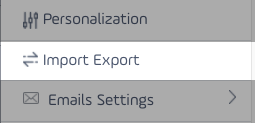
To import your photos in bulk, go to the import / export page, from the administration pane:
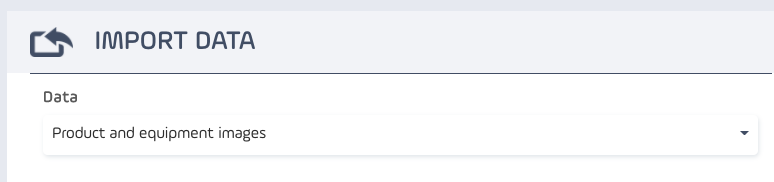
In the right-hand side of the screen concerning imprints, select “Product and equipment images”:
Importing photos into Monstock is done only with .ZIP format files. You will therefore need to create an archive containing all your photos.
ATTENTION: For the import to work correctly, and for the images to be correctly linked to the right product or equipment, you must put the code or the reference of the product / equipment in the name of the image file.
Once your .ZIP file is ready, all you have to do is send it to Monstock. To do this, click on "Add" in the "Sending file" section.
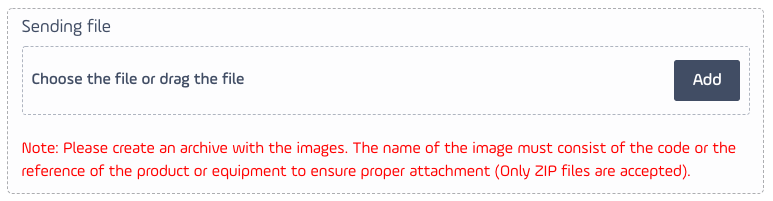
Once your file has been selected, click on "Import":

Comments
0 comments
Please sign in to leave a comment.